












Search and Replace is a powerful WordPress tool that helps you to quickly update content across your entire site. Whether you’re changing URLs, fixing typos, or updating product names, search and replace can save you considerable time.
This guide will show you different methods to implement search and replace in WordPress, including built-in options, plugins, and advanced techniques. So, let’s dive in and learn how to use search and replace in WordPress.
Why and When to Use Search and Replace in WordPress?
Search and Replace in WordPress is a quick and efficient way to update content across your site. It saves time by allowing you to make changes in bulk. This tool ensures consistency throughout your website and helps prevent manual errors.
Whether you’re fixing broken links after WordPress migration or updating product names, search and replace streamlines the process and keeps your site up-to-date. Search and Replace feature is primarily for:
Changing Text in Product Descriptions or Custom Fields
If your website has numerous product descriptions or uses custom fields, you may need to update certain terms across multiple products or posts.
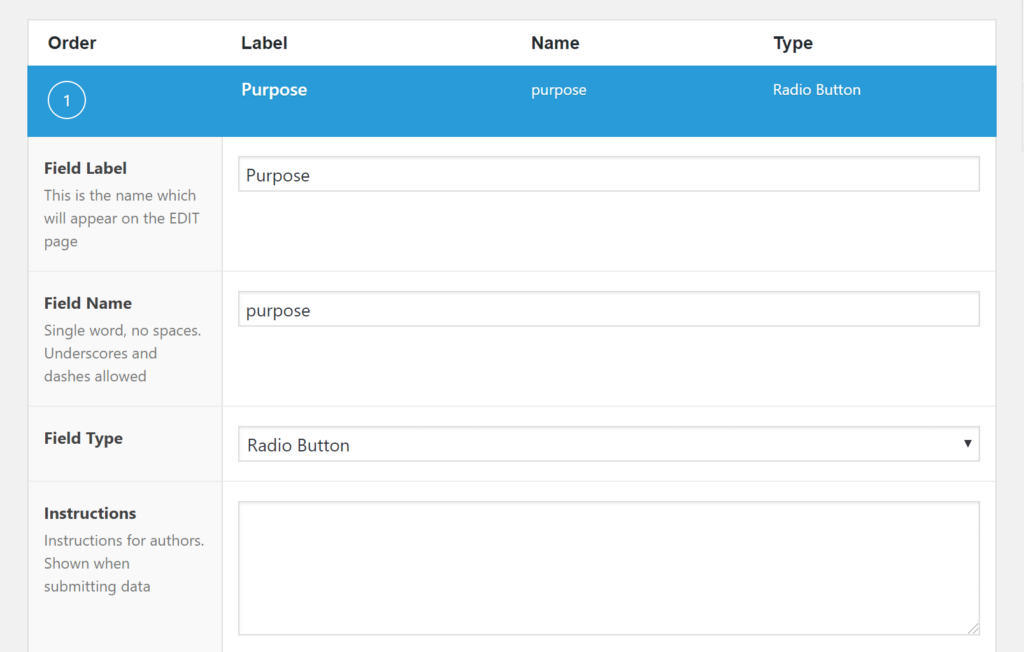
For example, if your company rebrands a product, search and replace allows you to update the product name in all descriptions and fields quickly. This ensures that the changes are applied consistently across the site without the need to edit each product individually.
Ultimate Guide: Advanced Custom Fields in WordPress
Updating Internal Links After Migrating from HTTP to HTTPS
When you switch your site from HTTP to HTTPS, updating all internal links to reflect the new secure URL structure is important.
Manually changing each link can be time-consuming. So, by using search and replace, you can update all your internal links at once, ensuring that your entire site uses HTTPS. This is essential for maintaining security and SEO rankings.
Related: How to Force HTTPS on Your WordPress Site
Fixing Image URLs After Moving the WordPress Installation to a New Domain or Server
When you migrate your WordPress site to a new domain or server, the image URLs might still point to the old domain. This can result in broken images across your site. Using search and replace, you can update the old image URLs to the new ones in bulk, making sure all images load correctly on the new site.
Removing Old Shortcodes or Outdated Elements Across Multiple Pages
Over time, you may stop using certain plugins or features that rely on shortcodes, leaving behind unused or broken shortcodes across your pages. Manually removing them from every page can be tedious. With search and replace, you can remove outdated shortcodes in one go. This also applies to removing outdated elements like deprecated code or content that no longer fits your site’s design.
Say Goodbye to Broken Links – Seamless Migration Awaits!
Let us handle everything to ensure there are no broken links and enjoy smooth transitions and zero downtime.
Important Considerations Before Using Search and Replace
Before using Search and Replace in WordPress, it’s important to take certain precautions to avoid mistakes or damaging your site. Here are key considerations:
- Backup Your Site: Always create a full backup of your WordPress site before making any changes. You can use a plugin like BlogVault or services like WP Umbrella for complete website backup. This ensures that if something goes wrong, you can restore your site to its previous state.
- Know What to Search and Replace: Be clear about what content you want to change. Double-check the text, URLs, or code you plan to replace. This prevents unintentional changes that could affect site functionality, such as replacing URLs in the database or changing important words in posts.
- Test on a Staging Environment: Run the search and replace process on a staging site first. This allows you to test the changes without affecting your live site. It’s also a good way to spot any issues before applying the changes to your main site.
Related: What Is a Staging Environment
Basic Methods to Implement Search & Replace in WordPress
There are several basic methods to implement Search & Replace in WordPress, each suited to different needs and expertise.
1. Built-in WordPress Methods for Search and Replace
Here are two built-in options in WordPress that you can use to search and replace text and links.
Using WordPress Block Editor (Gutenberg)
The WordPress Block Editor (Gutenberg) lets you manually search and replace content within individual posts and pages. This method is simple and works well for smaller, one-off changes. To use search and replace in the Block Editor, you need to:
- Open the post or page you want to edit.
- Use the browser’s built-in “Find” feature (Ctrl+F or Cmd+F) to locate the text.
- Manually replace the text block by block.
| Pros | Cons |
| Easy to use for small changes. | Time-consuming for large sites with many pages. |
| No need for additional plugins or coding. | Cannot perform bulk updates across the entire site. |
| Safe since it only affects individual posts or pages. | Limited functionality compared to other methods. |
Step-By-Step Guide: How to Create Custom Blocks in WordPress
Using Custom Code in Functions.php
Using custom PHP code in the functions.php file allows you to perform search and replace tasks directly in WordPress. This method is suitable for advanced users or WordPresss developers who are comfortable working with code. To add custom PHP code:
- Go to Appearance ⟶ Theme Editor and open the functions.php file.
- Add a custom PHP function to perform the search and replace. For example:
function search_replace_function() {
  global $wpdb;
  $wpdb->query("UPDATE wp_posts SET post_content = REPLACE(post_content, 'old-text', 'new-text')");
}
add_action('init', 'search_replace_function');
Save the file and refresh your site to execute the function.
| Pros | Cons |
| It allows you to make changes directly to your WordPress database, making it efficient for bulk updates. | Incorrect code can cause critical errors, potentially crashing your site. |
| It reduces reliance on third-party plugins. | This method requires coding knowledge, making it inaccessible for non-technical users. |
| You can tailor the code to perform very specific tasks based on your unique requirements. | Changes are immediate and difficult to revert unless you have a backup in place. |
| Running heavy queries can temporarily slow down your site, especially on large databases. |
Effortlessly Update Your Site – Add Search and Replace with Our Expert Help!
Whether you’re updating URLs, fixing content, or making bulk changes, our expert team can seamlessly integrate this feature into your site.
2. Using Plugins for Search and Replace in WordPress
Plugins for Search and Replace are the preferred method for non-developers because they require no coding knowledge. They offer a simple, user-friendly interface, making it easy to perform bulk changes without risk. They also help execute tasks safely, often with built-in features like backups or previews.
Using Better Search Replace Plugin
The Better Search Replace plugin is a popular tool for performing search and replace tasks on your WordPress site without any coding. It’s perfect for bulk updates, like changing URLs, and it has a user-friendly interface.
Step-by-Step Installation Guide
- Go to your WordPress dashboard and click on Plugins ⟶ Add New.
- In the search bar, type Better Search Replace. Click Install Now and then Activate.
- After activation, go to Tools ⟶ Better Search Replace in your WordPress dashboard.
- Enter the text you want to search for in the ‘Search for‘ field, and the replacement text in the ‘Replace with‘ field.
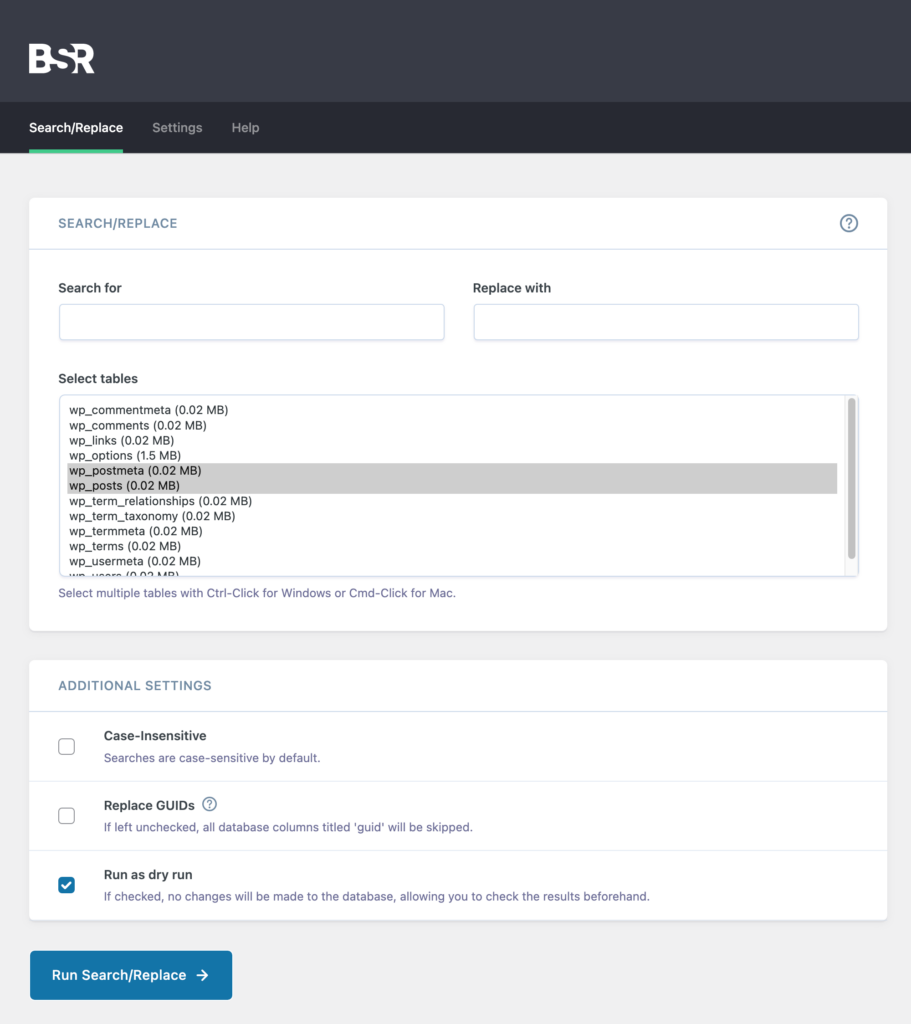
- Choose the database tables where you want the search and replace to occur (e.g., posts, pages).
Before running the process, check the option to Run as a dry run to preview changes without applying them. If everything looks correct, uncheck the dry run option and click Run Search/Replace to apply the changes.
Once the search and replace process is done, review the changes made. If any errors occur, you can easily revert to your backup.
3 .Using WP-CLI for Search and Replace
WP-CLI (WordPress Command Line Interface) allows developers to manage multiple WordPress sites using commands directly in the terminal. It speeds up bulk tasks like search and replace by bypassing the need for plugins or the WordPress dashboard. WP-CLI is ideal for advanced users or developers familiar with command-line operations.
Step-by-Step Guide on Using WP-CLI
Access your server via SSH using terminal software (e.g., Terminal on macOS or PuTTY on Windows). Go to the root directory of your WordPress installation.
- Use the following WP-CLI command to search and replace text in your database:
wp search-replace 'old-text' 'new-text'- If you want to run the search and replace across specific tables, use:
wp search-replace 'old-text' 'new-text' --tables=wp_posts,wp_postmeta- You can preview changes by adding the –dry-run option:
wp search-replace 'old-text' 'new-text' --dry-runThis will show the changes without actually modifying the database.
Advanced Methods for Search and Replace in WordPress
Advanced Search and Replace methods in WordPress provide more control and efficiency, making them ideal for developers and large sites.
Using SQL Queries in phpMyAdmin
Using SQL queries in phpMyAdmin allows you to perform search and replace directly within the WordPress database. This method is useful when you need precise control or are managing a large amount of data. It is ideal for bulk updates or when plugins and WP-CLI aren’t practical. This method is recommended for developers or advanced users.
Step-by-Step Guide for Executing SQL Queries
Log in to your hosting account and navigate to phpMyAdmin (usually found under the Database section). Select your WordPress database from the left-hand sidebar.
- Use the following SQL query to replace text in your WordPress content:
UPDATE wp_posts SET post_content = REPLACE(post_content, 'old-text', 'new-text');- Replace ‘old-text‘ with the text you want to find and ‘new-text’ with the replacement.
- Next, click on the SQL tab and paste the query. Run the query and check the number of affected rows to confirm the changes.
Note: Directly editing the database comes with risks, such as accidental deletion or corrupting data. So, always backup your database before making any changes.
Further reading: How to Repair and Fix WordPress Database
Hire WordPress Developers to Add Custom Site Functionality
Whether you need advanced features, unique plugins, or tailored solutions, our experienced team is here to help.
Search and Replace in Theme or Plugin Files
Performing search and replace within theme or plugin files allows you to update code directly, which can be necessary for changing hard-coded text, links, or functions. This method is useful for developers who need to edit multiple files efficiently.
To perform search and replace using a Text Editor:
- Use Sublime Text or VSCode code editor to open your theme or plugin files.
- Use the editor’s built-in search function to find specific text across multiple files.
- Replace the desired text and save the changes.
Read: Essential Web Development Tools For Website Developer
To use FTP to make changes:
- Connect to your server using an FTP client (e.g., FileZilla).
- Navigate to the theme or plugin folder within the wp-content directory.
- Download the files you want to edit, make changes in your text editor, and upload them back to the server.
Related: How to Setup an FTP Account for WordPress
To use the hosting File Manager method:
- Access the File Manager through your hosting control panel.
- Locate the relevant theme or plugin files, edit them directly in the file manager, or download and re-upload after editing.
Ultimate Guide: WordPress Development Workflow
Note: Altering core theme or plugin files can cause significant issues, such as breaking site functionality or making it difficult to apply future updates. To mitigate this risk, creating a child theme before making changes is essential. Additionally, always back up your theme or plugin files before making any edits.
Final Thoughts
Using Search and Replace in WordPress simplifies updating content across your site. Be it updating links, fixing text, or removing outdated elements, there are several methods available depending on your skill level.
Beginners can rely on user-friendly plugins, while advanced users can take advantage of WP-CLI or phpMyAdmin for more complex tasks. However, regardless of the method, always backup your site before making changes to ensure safety.
FAQs About Search and Replace in WordPress
When should I seek professional help for Search and Replace in WordPress?
If you’re handling large-scale changes, working with complex databases, or are unfamiliar with advanced methods like WP-CLI or phpMyAdmin, it’s a good idea to seek professional help. An expert like Seahawk can ensure that changes are made safely without risking your site’s functionality.
Can I undo changes made by Search and Replace?
If you use a plugin like Better Search Replace, you can preview changes before applying them. However, once changes are made, you cannot undo them unless you have a backup. So, always backup your site before making bulk updates.
Will Search and Replace affect my SEO?
If you’re updating URLs or internal links, it’s important to ensure the new links are properly formatted to avoid broken links, which can negatively impact SEO.
Do I need coding knowledge to use Search and Replace in WordPress?
No, you don’t need coding knowledge if you’re using plugins. However, more advanced methods like WP-CLI or custom PHP functions require technical skills.
Can I use Search and Replace to update URLs after migrating my site?
Yes, Search and Replace is commonly used to update URLs after migrating a WordPress site to ensure all internal links, images, and media point to the new domain.
What happens if I make a mistake during Search and Replace?
Mistakes can lead to broken functionality or incorrect content. That’s why it’s crucial to back up your site before running a search and replace.