













Securing your WordPress site against evolving threats is essential. One of the often-overlooked vulnerabilities is content sniffing (or MIME-type sniffing), a process where browsers try to guess the type of a file rather than strictly following the server’s specified type. This can expose your site to security risks like cross-site scripting (XSS) attacks. By disabling content sniffing through the X-Content-Type-Options (XCTO) header, you can prevent browsers from misinterpreting content types, ensuring safer interactions for your visitors.
In this guide, we’ll walk you through why and how to disable content sniffing in WordPress effectively.
What Is Content Sniffing?

Content sniffing, also known as MIME-type sniffing, is a process where web browsers attempt to deduce the content type of a file based on its data rather than following the declared content type specified by the server. While intended to improve usability, content sniffing can have unintended consequences when a browser wrongly assumes a file is executable, opening the door to security risks.
Risks of Content Sniffing:
- Cross-Site Scripting (XSS) Attacks: When a browser misinterprets a file as executable, it can enable attackers to inject malicious scripts that execute in users’ browsers, compromising sensitive information.
- Data Integrity Issues: Incorrect content interpretation can lead to unexpected behaviors on your site, affecting the user experience and potentially exposing vulnerabilities.
Solution: Disabling content sniffing with the X-Content-Type-Options header forces browsers to respect the server-declared MIME type, making your site more secure.
Enhance Your WordPress Security with Expert Assistance!
Our 24/7 WordPress support team can help you implement security headers like X-Content-Type-Options and provide comprehensive protection for your site.
Why Disabling Content Sniffing Is Important
Disabling content sniffing prevents browsers from guessing file types and potentially executing malicious scripts. For WordPress site owners, this is crucial as it safeguards against attacks that could lead to unauthorized access, data breaches, and disruptions.
Benefits of Disabling Content Sniffing:
- Reduced Vulnerability to XSS Attacks: Setting the XCTO header to “nosniff” ensures that scripts, images, and other files are interpreted correctly, reducing the risk of cross-site scripting.
- Enhanced Content Integrity: Disabling content sniffing maintains content integrity by enforcing strict MIME-type adherence, ensuring that content displays as intended without unexpected modifications.
- Adherence to Security Best Practices: Modern security standards recommend disabling content sniffing as part of a robust security framework.
How to Check if Content Sniffing is Disabled on Your WordPress Site
Before configuring the X-Content-Type-Options header, first determine if it’s already active on your WordPress site.
- Using Browser Developer Tools: Open your site in a browser, access Developer Tools (right-click > Inspect), go to the Network tab, reload the page, and look for X-Content-Type-Options: nosniff in the headers.
- Using Online Security Tools: Websites like SecurityHeaders.com or Mozilla’s Observatory can quickly analyze your site’s headers and confirm if content sniffing is disabled.
If the XCTO header is not set, follow the steps below to disable content sniffing in WordPress.
How to Disable Content Sniffing in WordPress
To disable content sniffing, you need to configure the X-Content-Type-Options header with the value “nosniff.” Here are two effective methods: using a WordPress plugin or directly editing the .htaccess file.
Method 1: Using a Plugin to Disable Content Sniffing

For a straightforward, code-free approach, you can use a plugin like HTTP Headers by Dimitar Ivanov to manage security headers, including XCTO.
Steps:
- Install and Activate the Plugin: In your WordPress dashboard, go to Plugins > Add New, search for “HTTP Headers,” install, and activate it.
- Configure the XCTO Header:
- Navigate to Settings > HTTP Headers.
- In the Security section, locate X-Content-Type-Options and set it to “nosniff” by toggling the option on.
- Save and Verify: Save the changes, then use Developer Tools or an online header-checking tool to verify that content sniffing is disabled.
Benefits:
- This method is quick and requires no manual coding.
- Plugins like HTTP Headers provide easy access to manage additional security headers if needed.
Method 2: Manually Editing the .htaccess File to Disable Content Sniffing in WordPress

If you’re comfortable editing files, you can directly add the XCTO header to your .htaccess file.
Steps:
- Backup Your Site: Before editing the .htaccess file, backup your site files and database. Use a plugin like BlogVault for a full backup in case of issues.
- Access the .htaccess File:
- Use an FTP client (e.g., Filezilla) or your host’s cPanel File Manager to locate the .htaccess file in the root directory (public_html).
- Ensure hidden files are visible, as .htaccess may be hidden by default.
- Add the XCTO Header: Open .htaccess and add the following code:
<IfModule mod_headers.c>
Header set X-Content-Type-Options “nosniff”
</IfModule>
- Save and Test: Save the file and re-upload if using FTP. Use Developer Tools or a security scanning tool to confirm that content sniffing is now disabled.
Troubleshooting Common Issues
When configuring the XCTO header to disable content sniffing, you might encounter a few issues. Here are troubleshooting tips:
- Conflicting Headers: Sometimes plugins or server settings can add duplicate headers. Check your site’s headers to ensure the XCTO header is set only once.
- Cache Issues: If changes don’t appear immediately, clear both your browser and site cache. Some caching plugins may store previous versions of the site without the updated header.
- Syntax Errors in .htaccess: Ensure the code is entered exactly as shown. Errors in .htaccess can cause server issues or unexpected site behavior.
Know more: WordPress Hacked? Here’s How to Fix a Hacked WordPress Site
Additional HTTP Security Headers to Enhance WordPress Security
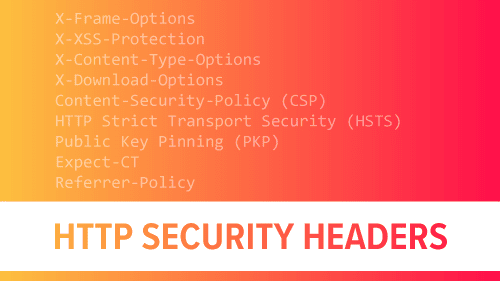
Disabling content sniffing is an essential security measure, but combining it with other HTTP security headers creates a more secure environment for your WordPress site.
- X-Frame-Options: Prevents clickjacking by controlling if your site can be displayed in iframes.
- Strict-Transport-Security (HSTS): Enforces HTTPS, ensuring secure connections.
- Content Security Policy (CSP): Manages which resources browsers can load, providing protection against code injection.
- Referrer-Policy: Limits referrer information sharing to enhance privacy.
Each header adds another layer of protection, reducing the likelihood of unauthorized access or data leaks.
Learn: WordPress Security Mistakes to Avoid
Conclusion
Disabling content sniffing by configuring the X-Content-Type-Options header with “nosniff” is a straightforward yet powerful step in securing your WordPress site. This configuration prevents browsers from making incorrect assumptions about file types, protecting your site from MIME-type sniffing vulnerabilities and potential XSS attacks. Remember, however, that disabling content sniffing is just one part of a broader security strategy. Combine it with other headers, security plugins, and best practices to create a secure and reliable WordPress environment.